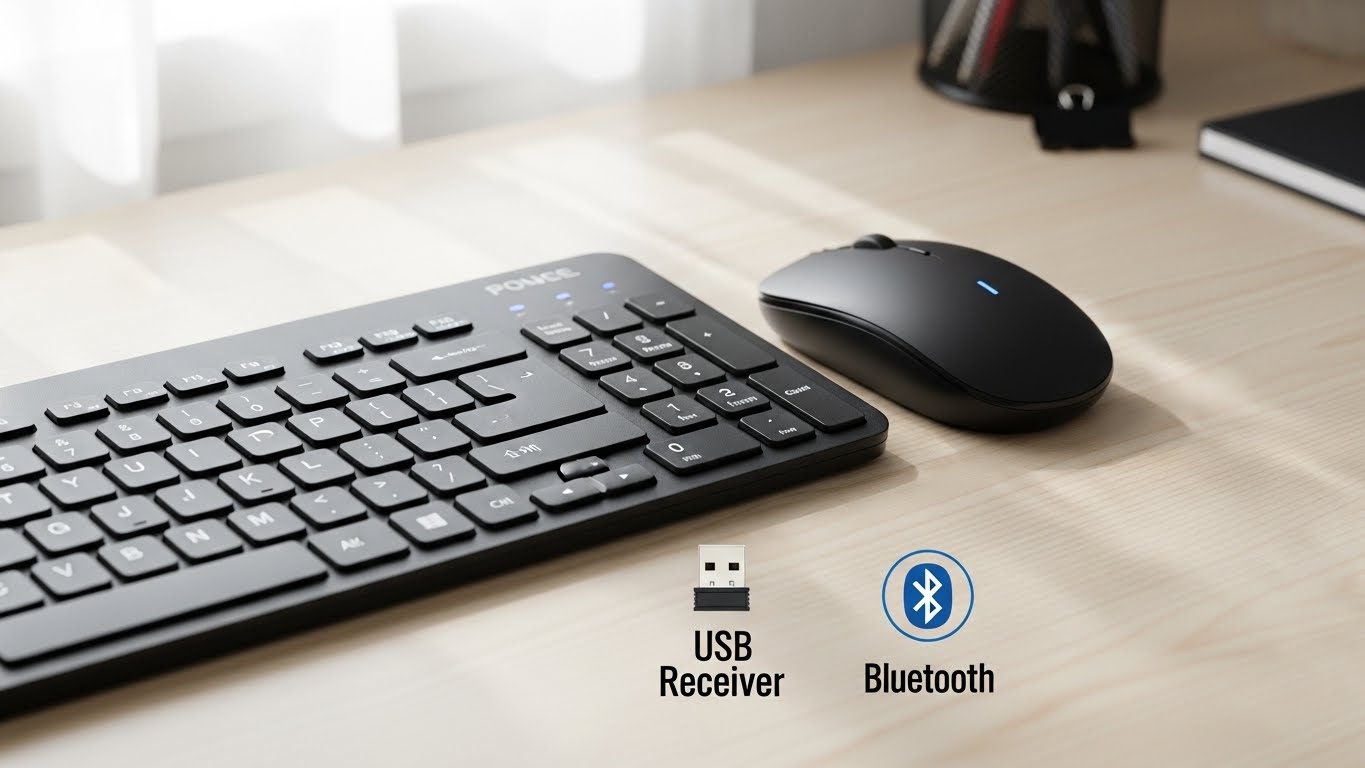
New wireless gear should take minutes, not hours. The only real decision is Bluetooth vs USB receiver (2.4GHz dongle)—and the best choice depends on how you use your laptop/PC.
Below is a simple step-by-step setup guide, plus quick fixes for lag, pairing problems, and random disconnects.
Bluetooth vs USB Receiver: Which should you use?
Use USB receiver (2.4GHz dongle) if you want:
- The most stable connection (especially for gaming)
- Lower latency and fewer dropouts
- Plug-and-play setup (usually no settings menu needed)
Use Bluetooth if you want:
- No dongle taking up a USB port
- Easy use with laptops/tablets
- Multi-device switching (many keyboards/mice can pair to 2–3 devices)
Real-world tip: If your mouse/keyboard supports both, many people run USB receiver on the gaming PC and Bluetooth on the work laptop.
Before you start (30-second checklist)
- Insert fresh batteries or fully charge the device.
- Turn the mouse/keyboard ON.
- Check for a mode switch on the bottom or side:
- “BT” / “Bluetooth”
- “2.4G” / “USB” / receiver icon
- Keep the device within 1–3 feet of the computer during setup.
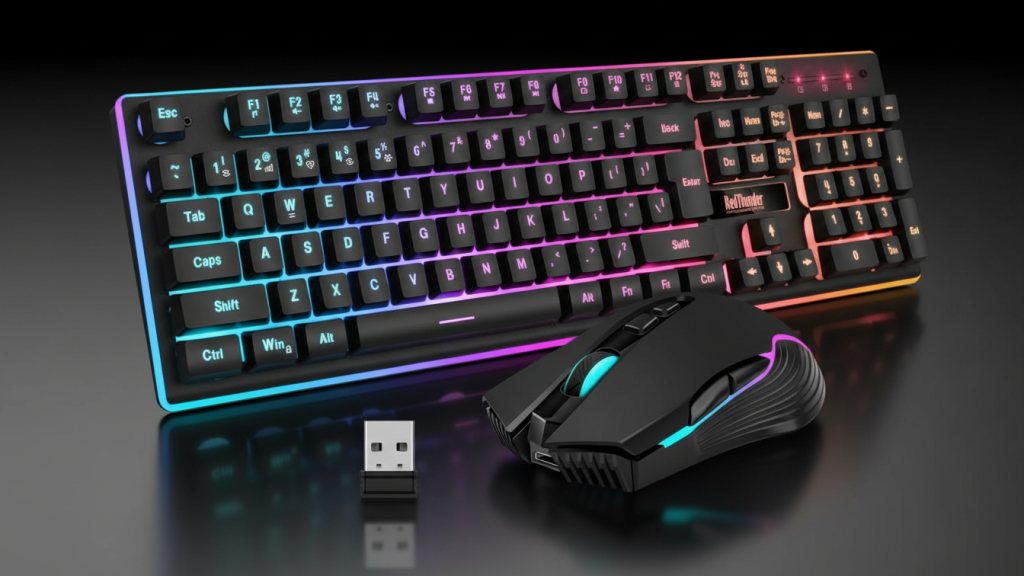
Step-by-step: Setup using a USB Receiver (2.4GHz dongle)
Step 1: Plug in the receiver
- Insert the USB dongle into a USB port (front ports are okay, but back ports are often more stable on desktops).
Step 2: Wait 10–30 seconds
- Most devices auto-install drivers on Windows/macOS.
Step 3: Confirm it’s working
- Move the mouse / type on the keyboard.
- If nothing happens, try a different USB port.
Step 4 (Optional but recommended): Install the brand’s software
If your device supports it, software can let you:
- Set DPI / pointer speed
- Remap buttons
- Create macros
- Update firmware
Best practice: Do firmware updates before you customize settings.
Step-by-step: Setup using Bluetooth
On Windows 11
Step 1: Put the device in pairing mode
- Hold the Bluetooth/pair button (often 3–5 seconds) until the LED flashes.
- Some keyboards use Fn + Bluetooth key (1/2/3).
Step 2: Open Bluetooth settings
- Settings → Bluetooth & devices → Add device → Bluetooth
Step 3: Select your keyboard/mouse
- Click the device name when it appears.
Step 4: If a PIN code appears (keyboard)
- Type the PIN on the keyboard you’re pairing, then press Enter.
On macOS
Step 1: Put the device in pairing mode
- LED should blink.
Step 2: Go to Bluetooth
- System Settings → Bluetooth → find the device → Connect
Step 3: Confirm it responds
- Test typing/cursor movement.
On iPad / Android (quick version)
- Put device in pairing mode
- Open Bluetooth settings
- Tap device name → Pair/Connect
Multi-device switching (very common)
If your mouse/keyboard has 1 / 2 / 3 buttons:
- Pair Device 1 (ex: PC) on channel 1
- Pair Device 2 (ex: laptop) on channel 2
- Switch anytime by tapping 1/2/3 (or Fn+1/2/3)
Tip: Write down which channel is which—saves frustration later.
Recommended settings after setup (feels better instantly)
Mouse settings
- Windows: Settings → Bluetooth & devices → Mouse
- Set pointer speed to comfortable
- Turn off “Enhance pointer precision” if you want more consistent control (especially for gaming)
Keyboard settings
- Adjust repeat delay/repeat rate if keys feel too slow/fast
- Set your layout (US English / etc.) correctly to avoid weird symbols
Troubleshooting (most common issues)
1) It won’t connect (Bluetooth)
Fixes:
- Turn Bluetooth off/on
- Remove the device and re-pair:
- Windows: Bluetooth & devices → Devices → Remove → Add again
- macOS: Bluetooth → Forget → Pair again
- Move closer (Bluetooth pairing is sensitive)
- Replace batteries / fully charge
2) Lag, stutter, or random disconnects
Fixes that actually work:
- Use a USB 2.0 port (sometimes more stable for receivers than USB 3.0)
- Plug receiver into a front port or use a short USB extender to bring it closer
- Keep receiver away from:
- Wi-Fi router
- USB 3.0 hubs
- External hard drives
- Metal desk frames
- Switch Wi-Fi from 2.4GHz to 5GHz if possible (reduces interference)
3) The receiver works but Bluetooth doesn’t (or vice versa)
- Double-check the mode switch (BT vs 2.4G)
- Reset pairing mode and try again
- Some devices can only remember a limited number of Bluetooth pairings—clear older ones if needed
4) Keyboard types wrong characters
- Confirm language/layout:
- Windows: Time & language → Language & region
- macOS: Keyboard → Input Sources
Best setup for work + gaming (simple recommendation)
- Gaming PC: USB receiver (lowest latency, most stable)
- Laptop/work device: Bluetooth (no dongle, easy switching)